
Once your registration has been approved you can log in to the website and edit your profile. This enables you to change any details that you put on your registration form and add images.
Logging in to the web site
| Logging in | |
| On the right hand side of most web pages you will see a link to ‘login’, click over it. |  |
| Enter your event callsign and password. Click over the [Login] button. |  |
| Editing the profile | |
| When your profile screen loads, click over the cog on the right – this will enable you to edit your details and add images. | 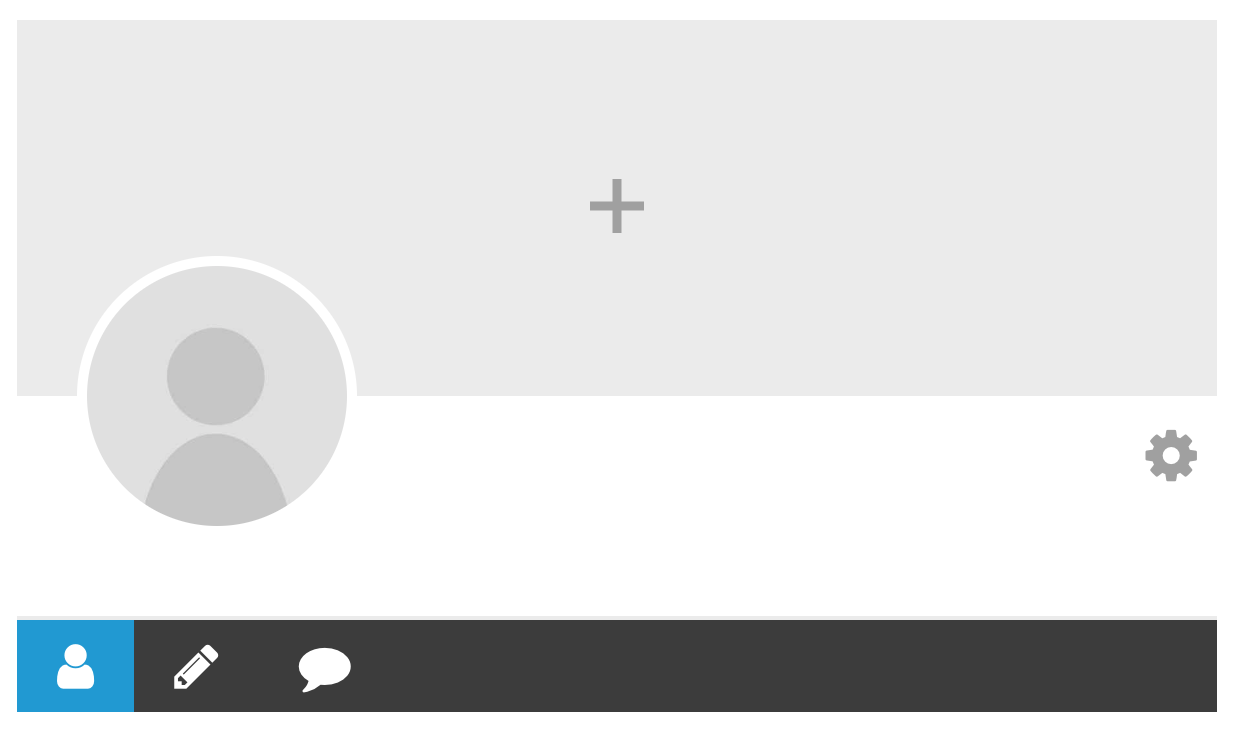 |
| When the drop-down menu appears, click over the ‘Edit Profile’ option. The details you entered when registering will now appear. You can edit any of the fields by simply placing your cursor in the field and adding/editing the content. | 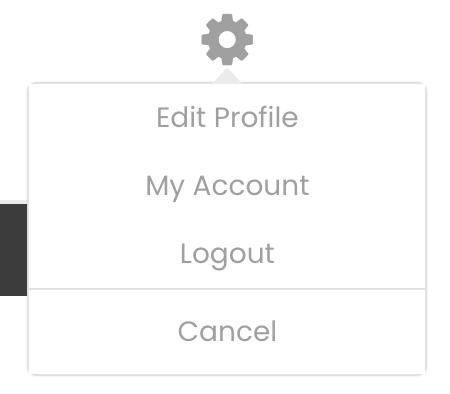 |
| Adding a profile image | |
| Too add a profile picture, click over the camera in the middle of the profile picture. When the drop down menu appears click over the ‘Upload Photo’ option. | 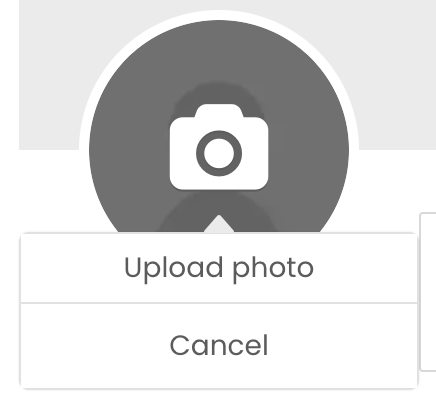 |
| When the upload dialog box appears, either drag an image into the dotted box, or click over [Upload] button, navigate to the required image on your computer and select the image. | 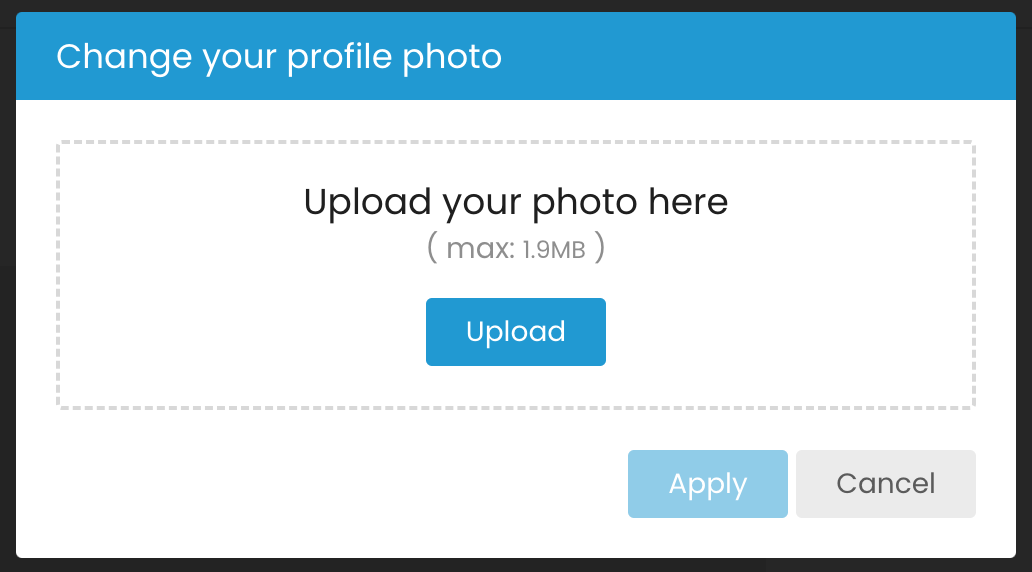 |
| Once the image has uploaded, it will be shown with a blue square overlaid on it. The blue square is what will be selected as the profile image. You can move the square until you have exactly what you want to be displayed. Click over the [Apply] button. | 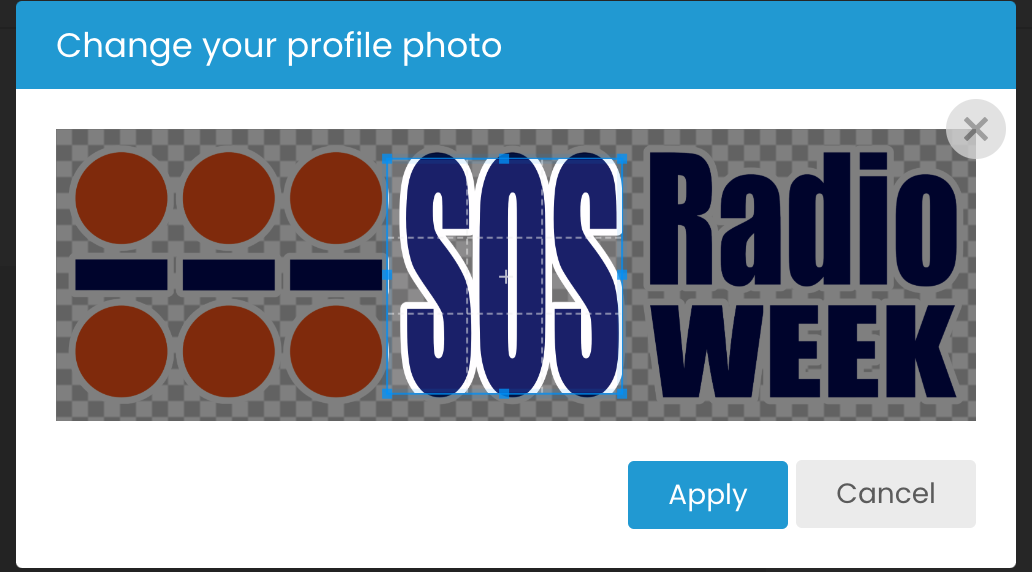 |
| The profile image will now be applied to your profile. If you don’t like it, you can try again and again until you get what you want. |  |
| Adding a cover image | |
| Click over the large ‘+’ in the middle of the cover image. When the drop-down menu appears click over the ‘Upload a cover photo option’. | 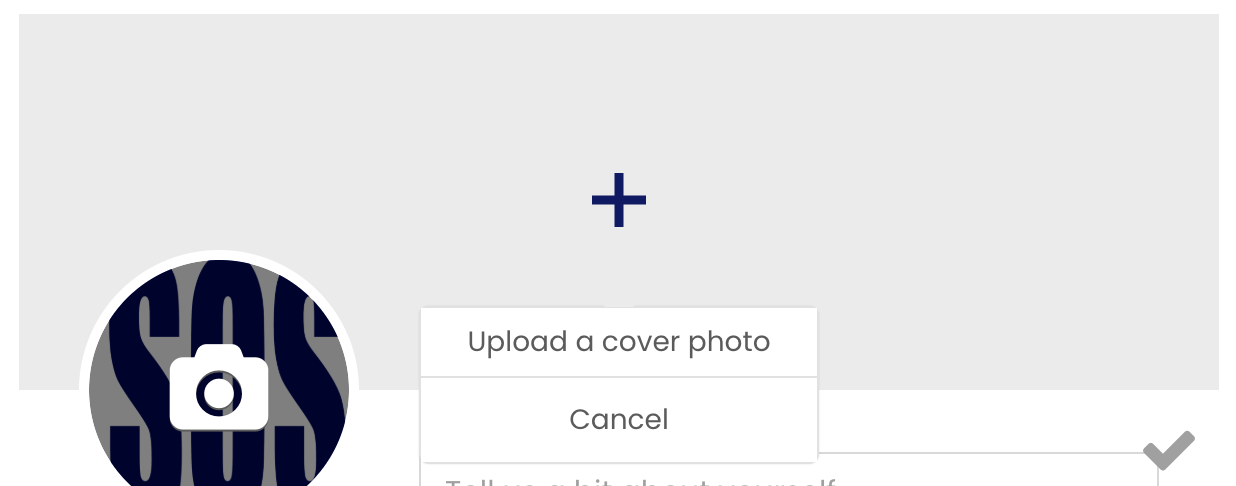 |
| When the upload dialog box appears, either drag an image into the dotted box, or click over [Upload] button, navigate to the required image on your computer and select the image. | 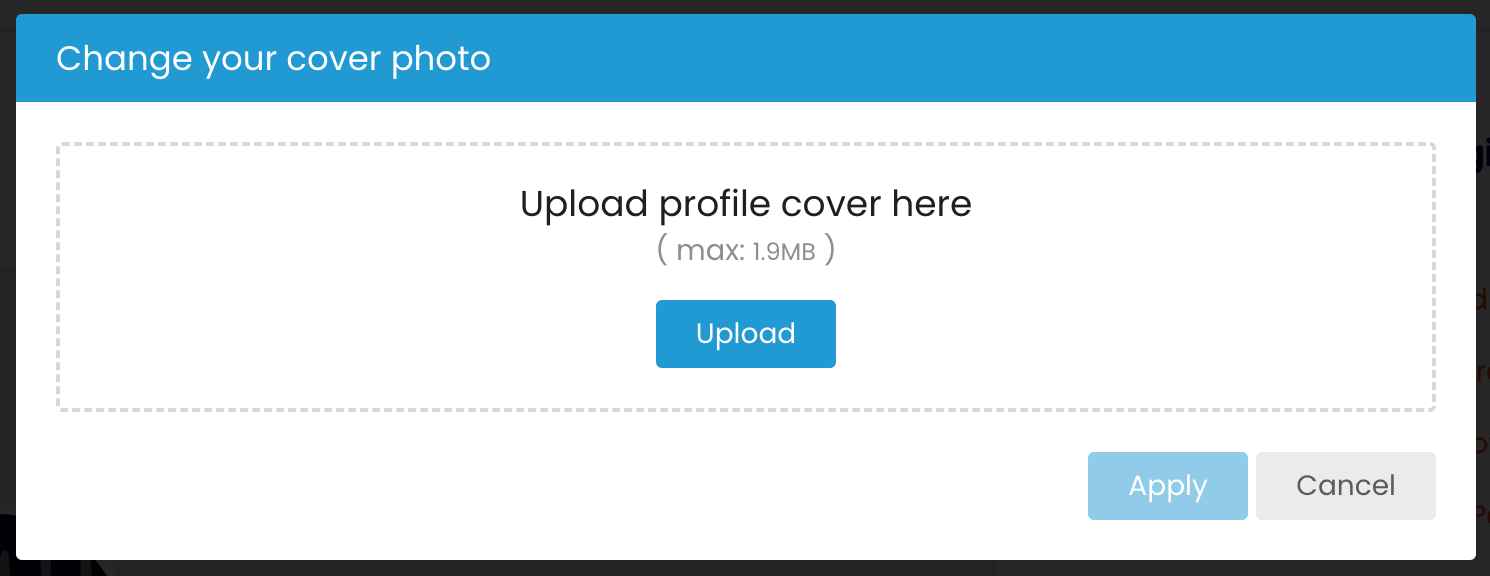 |
| Once the image has uploaded, it will be shown with a blue rectangle overlaid on it. The blue rectangle is what will be selected as the cover image. You can move the rectangle until you have exactly what you want to be displayed. Click over the [Apply] button. | 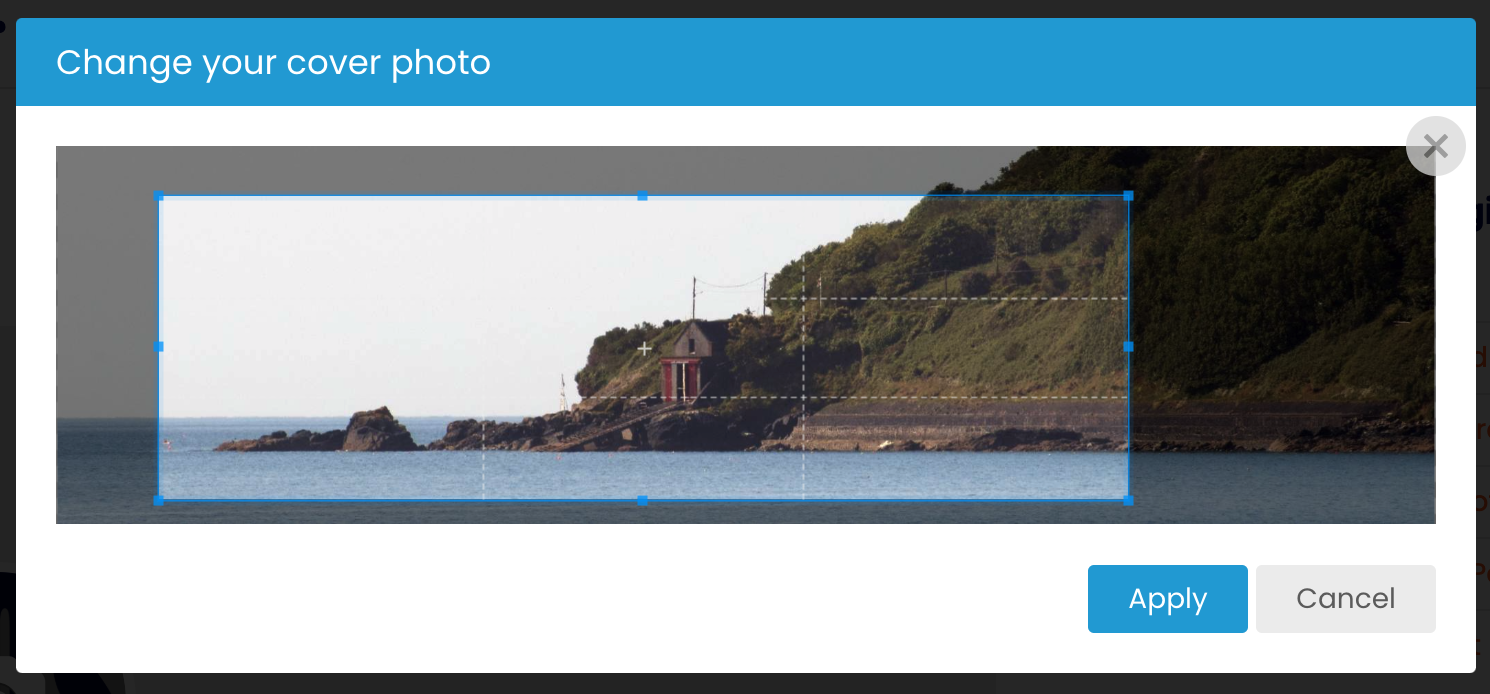 |
| The cover image will now be applied to your profile. If you don’t like it, you can try again and again until you get what you want. | 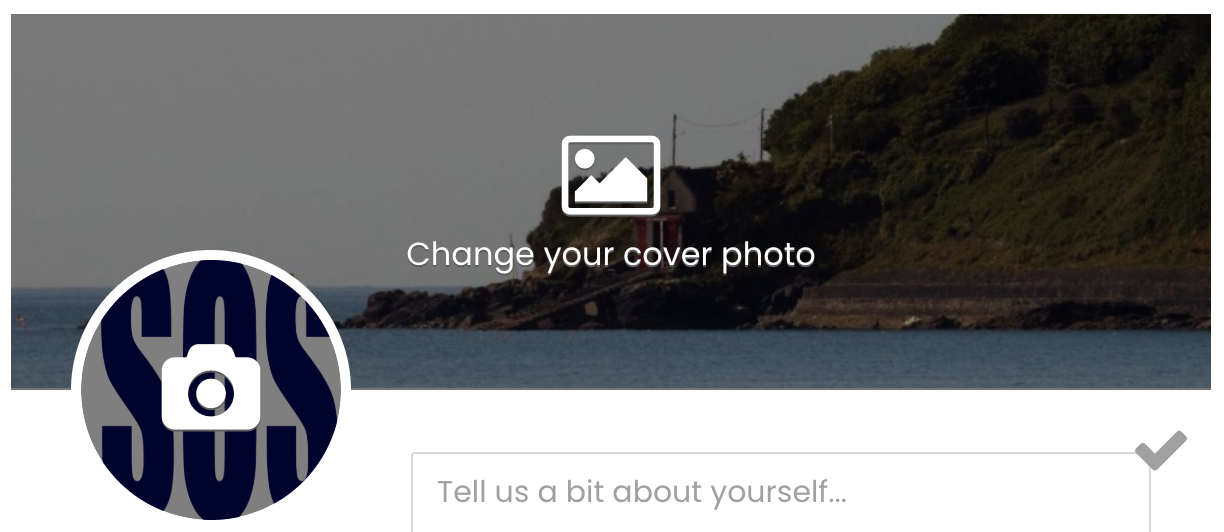 |
| Adding a biography | |
| To add some text about your station place your cursor in the box beneath the profile and cover images. If the box is empty, ‘Tell us a bit about yourself …’ will be displayed in there – it will disappear when you start typing. | 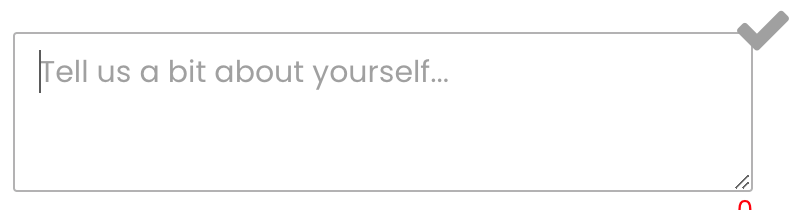 |
| Saving your changes | |
| When you’re done and want to save the changes you have made, click over the large arrow in the top right corner of the biography box. Alternatively, you can click over the [Update Profile] button at the bottom of the profile screen. |  |
| When you’ve finished, logout of the web page by clicking the ‘Logout’ link on the right of the web page. |